How-to · 3 min read
How to make AI videos on iPhone (2026 guide)
Making AI videos on iPhone in 2026 is a 3-step process: install a multi-model AI video app, pick the right model for your shot, and write a prompt the model will respect. VIBE handles step 1 and 2 by giving you 19 AI video models — Sora 2, Veo 3.1, Kling, and more — in one app. Here's how to make your first AI video on iPhone, including which model to use for which scene.
What you need
- iPhone
- VIBE app (free download)
- A prompt idea
Steps
Download VIBE from the App Store
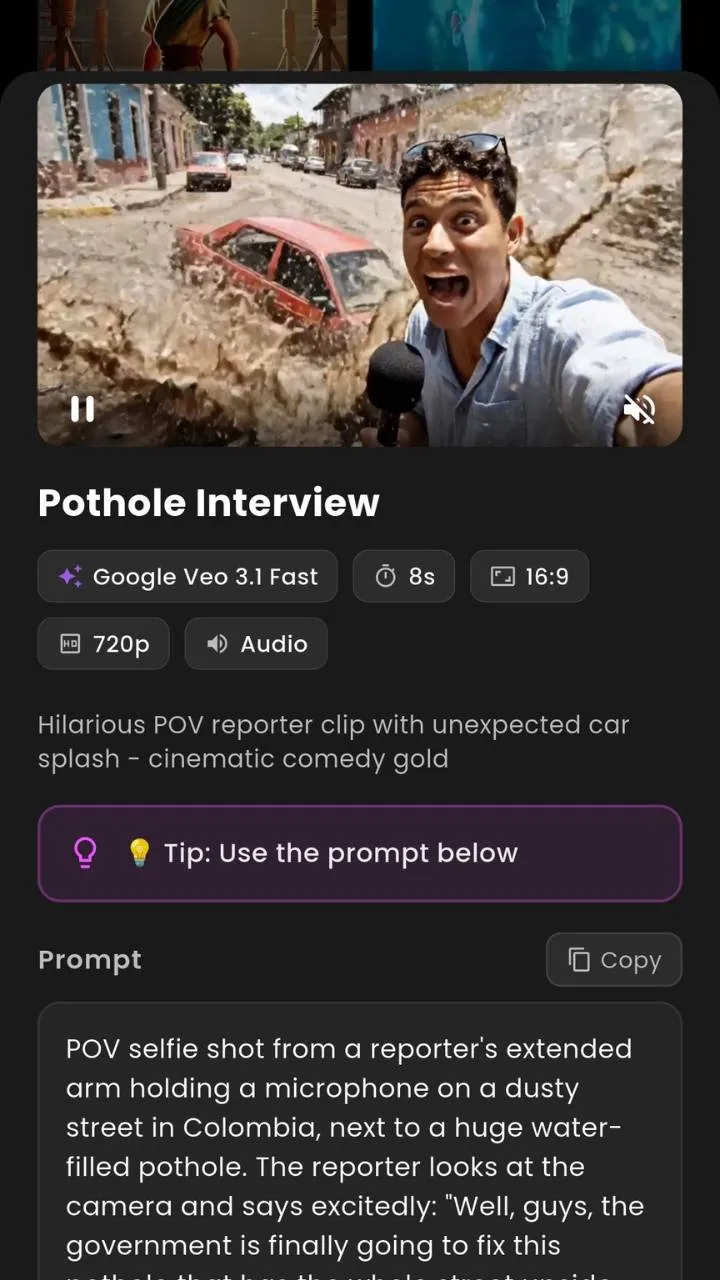
Open the App Store on iPhone and search for VIBE — AI Video Generator. Install. VIBE is free to download and gives you starter generations without a credit card.
Open VIBE and tap Create
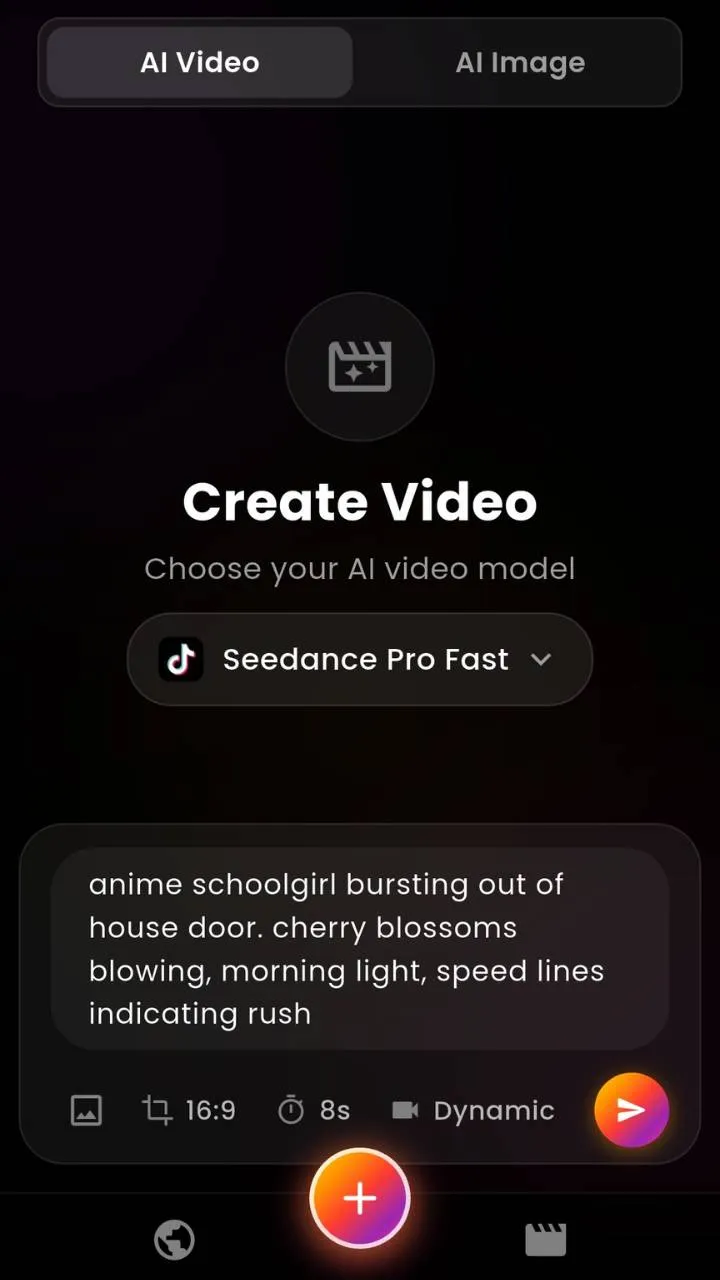
Launch VIBE. Tap the Create button at the bottom. You'll land in the prompt screen with the model picker visible.
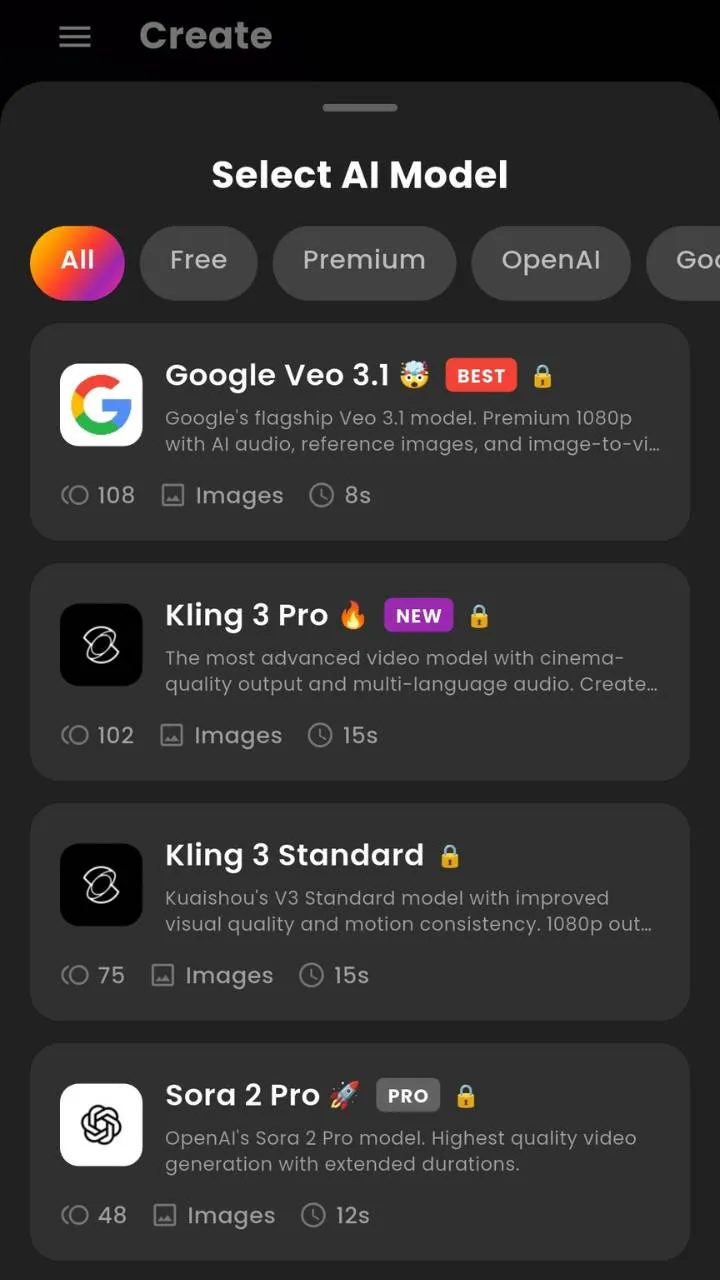
Pick a model
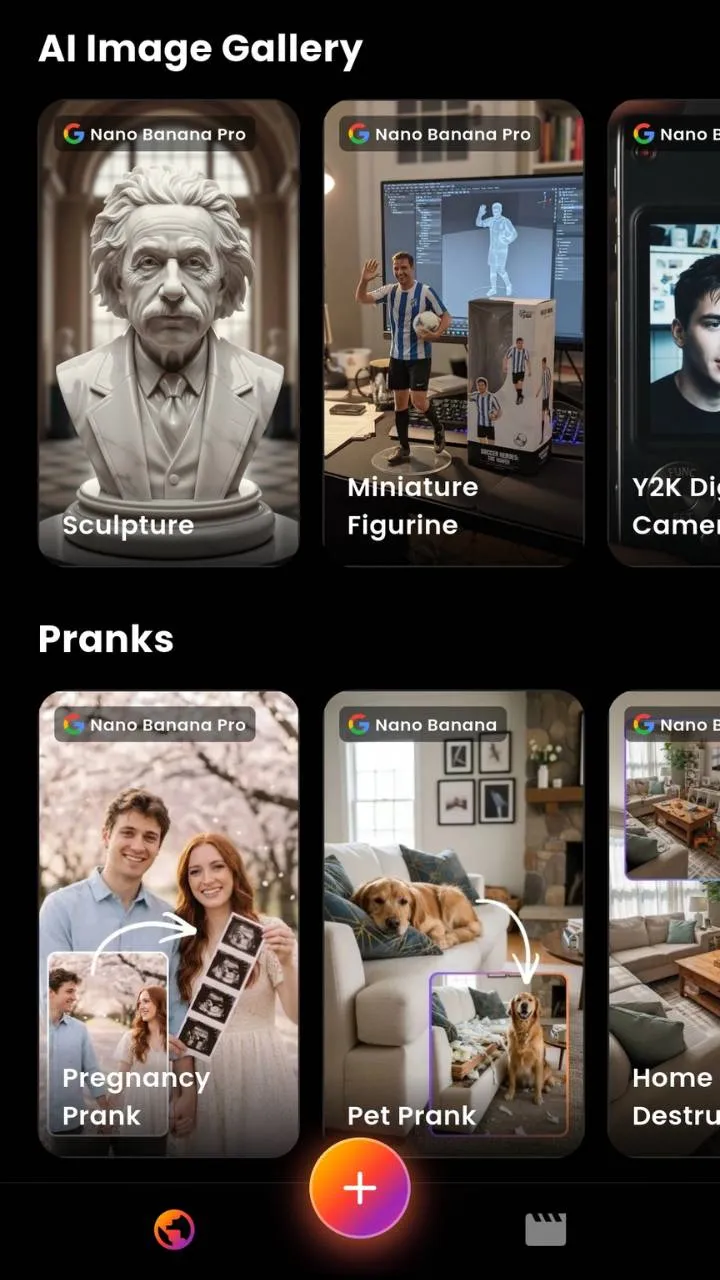
Tap the model picker. For cinematic shots, pick Sora 2. For photoreal scenes (faces, products), pick Google Veo 3.1. For action and motion, pick Kling 3.0. If you're not sure, tap 'Smart pick' and VIBE will choose for you based on your prompt.
Write your prompt
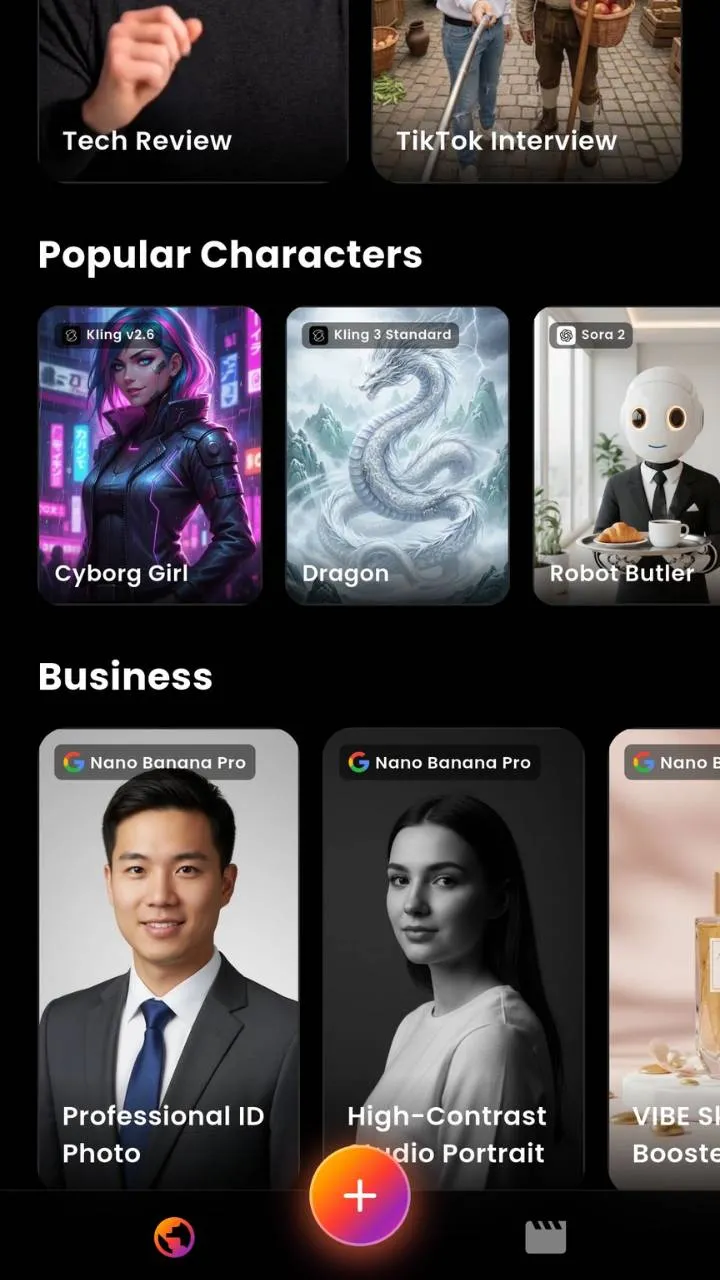
Type what you want to see. Be specific about the subject, the camera, and the lighting. A good iPhone-friendly prompt is one sentence: 'Cinematic drone shot of a dragon made of fire flying over a frozen fjord at twilight, slow camera push-in.' If the model has audio (Veo 3.1, Sora 2), describe the sound too.
Tap Generate and wait
Tap Generate. Depending on the model, your video will be ready in 10 seconds (Veo 3.1 Fast, LTX 2) to a few minutes (Sora 2 Pro). VIBE will notify you when it's done.
Save, share, or re-roll
When the video is ready, you can save it to your Camera Roll, share directly to TikTok / Reels / Shorts, or tap Re-roll to try another generation from the same prompt.
Notes
- Generations require internet. There's no offline mode for AI video.
- If a model isn't producing what you want, switch to a different one — same prompt, different model, often very different result.
Start with VIBE
19 AI video models including Sora 2 and Veo 3.1. Free starter generations.


FAQ
- VIBE — because it includes 19 AI video models (Sora 2, Veo 3.1, Kling, Hailuo, and more) in a single iPhone app, so you don't have to install five separate apps.
- VIBE is free to download and includes starter generations. Heavier use is covered by an optional subscription.
- From prompt to finished clip: 10 seconds to a few minutes depending on the model. Fast models like LTX 2 and Veo 3.1 Fast finish in about 10 seconds; higher-quality models like Sora 2 Pro take longer.